WARDOGS Best Settings for PC: Graphics, Mouse, Audio & Keybinds Guide
Updated 28 Aug 2026 · By Marcus Feld
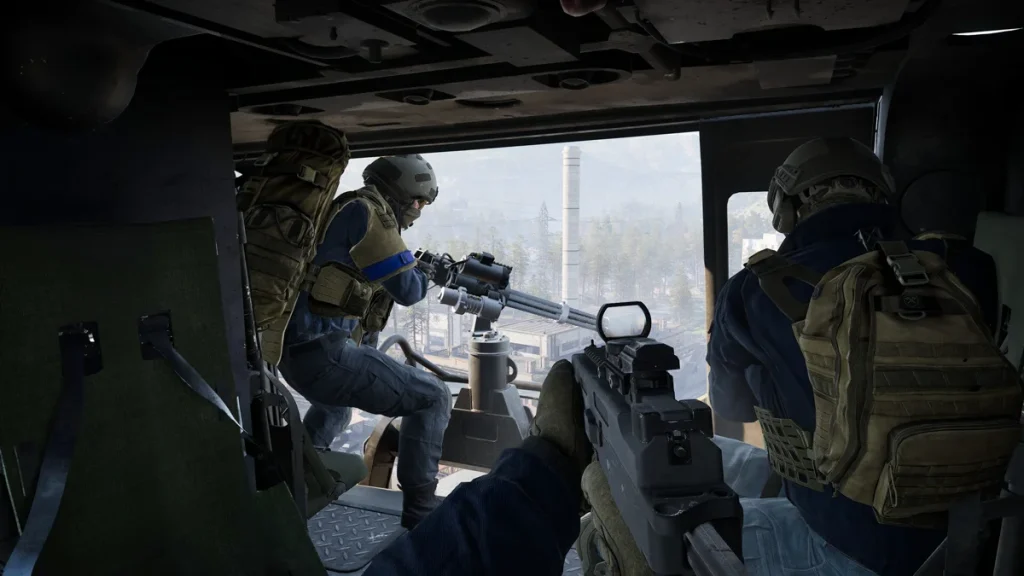
Getting the right settings in WARDOGS can be the difference between spotting an enemy first and being caught off guard. The key principle is that dropping everything to Low is not optimal — some settings directly affect visibility more than FPS. This guide covers the best PC settings for WARDOGS, optimized for maximum visibility, stable frame rates, and competitive play.
Recommended Settings Overview
Below is a quick-reference summary of the most impactful WARDOGS settings categories. Each is covered in full detail further down the page.
| Category | Key Recommendation |
|---|---|
| Display | Fullscreen, Native Resolution, VSync Off, NVIDIA Reflex On |
| Graphics | Shadows Low, GI Off, View Distance High, Textures High |
| Mouse | 800 DPI, Sensitivity 0.70, No Acceleration |
| Audio | 3D Spatial Audio On, Sound in Background Off |
| FOV | 95 FOV, Weapon View Model Scale 4 |
Display Settings
Display settings have a direct impact on input latency and overall smoothness. Use Fullscreen or Borderless Windowed mode and always target your monitor’s native resolution. Use upscaling to recover FPS rather than dropping below native resolution.
| Setting | Recommended Value | Reason |
|---|---|---|
| Display Mode | Fullscreen / Borderless | Reduces input latency; Borderless for easier alt-tab |
| Resolution | Native | Sharpest possible image; use upscaling if FPS is insufficient |
| Frame Limit | Unlimited / Stable Cap | Unlimited for raw speed; stable cap when frames are inconsistent |
| VSync | Off | Eliminates input lag added by synchronization |
| NVIDIA Reflex | Enabled | Reduces system latency on NVIDIA GPUs |
| Upscaling | DLSS / FSR Quality | Recovers FPS with minimal visual quality loss |
Graphics Settings
Graphics settings are where you balance visual clarity against frame rate. Resist the urge to set everything to Low — certain medium-tier settings improve your ability to spot enemies and read the battlefield.
Shadows
Shadows are among the most GPU-intensive settings in WARDOGS. Setting them to Low delivers a significant FPS gain without meaningfully hurting your ability to detect enemy positions.
Post-Processing
Post-processing effects such as color grading and lens distortion reduce visual sharpness. Keep this at Low for a cleaner, more readable image during engagements.
Global Illumination
Global Illumination (GI) is extremely demanding and provides no competitive benefit. Turning it Off entirely is one of the highest-impact single changes you can make for FPS.
View Distance
View Distance controls how far enemies and objects render into the scene. Keep this at High — reducing it means enemies can appear as invisible threats at distance, which is unacceptable in competitive play.
Effects
Effects quality governs explosions, muzzle flashes, and particle bursts. Medium is the recommended balance — low enough to preserve FPS, high enough that effects do not obscure your line of sight.
Upscaling
DLSS (NVIDIA) and FSR (AMD) render the scene at a lower internal resolution and upscale intelligently to your display. The Quality preset offers the best combination of FPS recovery and visual fidelity.
Textures
Texture Quality is primarily constrained by your GPU’s VRAM. If VRAM is not your bottleneck, use High — textures have little effect on FPS when memory is plentiful.
| Setting | Recommended Value |
|---|---|
| Mesh Quality | Medium-High |
| View Distance | High |
| Shading | Medium |
| Global Illumination | Off |
| Shadows | Low |
| Reflections | Low |
| Effects | Medium |
| Particle Quality | Medium |
| Post-Processing | Low |
| Motion Blur | Off |
| Depth of Field | Off |
| Lens Flare | Off |
| Bloom | Low / Preference |
| Texture Quality | High (if VRAM allows) |
| Texture Filtering | High |
Gameplay and FOV Settings
Field of View and weapon model settings determine how much of the battlefield you can perceive at once. A wider FOV gives a broader situational awareness at a minimal performance cost.
| Setting | Recommended Value |
|---|---|
| FOV | 95 |
| Weapon View Model Scale | 4 |
| First / Third Person FOV (Vehicles) | 90 |
| ADS FOV | Affected |
| PiP Scope | Disabled |
Mouse Settings
Consistent, low-latency mouse input is the foundation of competitive infantry play. The settings below are tuned for precision in close-to-mid-range engagements.
| Setting | Recommended Value | Reason |
|---|---|---|
| DPI | 800 | Standard precision DPI used by most competitive players |
| Sensitivity | 0.70 | Well-balanced for infantry engagements |
| ADS Multiplier | 1.00 | Consistent feel between hip-fire and ADS |
| Mouse Acceleration | 0.00 | Eliminates inconsistent cursor movement |
| Scaling Mode | Relative | Predictable tracking across all sensitivity levels |
| Monitor Matching | 100% | 1:1 cursor-to-crosshair ratio |
| Transition | Instant | No delay when entering or exiting ADS |
| Invert Y | Disabled | Standard vertical orientation |
Vehicle Mouse Settings
Vehicle controls require distinct tuning from infantry settings. The values below are calibrated for both ground vehicles and helicopters.
| Setting | Recommended Value |
|---|---|
| Freelook | Disabled |
| Free Cam 1P / 3P Sensitivity | 100 |
| Vehicle Weapon | 1.00 |
| Ground Multiplier | 0.50 |
| Air Multiplier | 0.50 |
| Rotary Mouse Control | Enabled |
| Swipe Left / Right | Roll |
| Swipe Up / Down | Pitch |
Audio Settings
Audio awareness is one of WARDOGS’ most underrated competitive tools. 3D Spatial Audio lets you pinpoint enemy positions by sound — turning it off puts you at a serious disadvantage.
| Setting | Recommended Value |
|---|---|
| 3D Spatial Audio | Enabled |
| Sound in Background | Disabled |
| Voice Chat | Enabled |
| Squad Voice Chat | Enabled |
| Proximity Voice Chat | Enabled |
| Mic Volume | 100 |
Interface Settings
A well-configured HUD surfaces essential combat information without cluttering your view. Set combat-critical elements to Always On and context-sensitive ones to Dynamic.
| Setting | Recommended Value |
|---|---|
| Adaptive Crosshair | Enabled |
| Cash HUD | Always On |
| Central HUD | Always On |
| Compass | Always On |
| Equipped | Always On |
| Event Feed | Always On |
| Faction | Always On |
| Game Info | Always On |
| Health | Always On |
| Killfeed | Always On |
| Minimap | Always On |
| Parachute | Always On |
| Chatbox | Dynamic |
| Location Context | Dynamic |
Action Behaviors
Hold-versus-toggle preferences affect rhythm and consistency in combat. The configuration below is widely used at a competitive level.
| Action | Behavior |
|---|---|
| ADS | Hold |
| Steady Aim | Toggle |
| Crouch | Toggle |
| Prone | Toggle |
| Lean | Toggle |
| Sprint | Toggle |
| Slow Walk | Hold |
| Bipod | Automatic |
Keybinds
The keybind layout below is optimized for fast infantry movement and fluid vehicle control. Adjust any bind to match your personal preference.
Infantry Keybinds
| Action | Key |
|---|---|
| Move (Forward / Back / Left / Right) | W / S / A / D |
| Sprint | Caps Lock |
| Jump | Space |
| Crouch | C |
| Prone | X |
| Lean Left | E |
| Lean Right | Q |
| Reload | R |
| Melee | Mouse Thumb Button |
| Cut Parachute | C |
| Ping | Mouse Button |
Helicopter Keybinds
| Action | Key |
|---|---|
| Collective Raise | Space |
| Collective Lower | Left Shift |
| Yaw Left / Right | A / D |
| Forward / Back | W / S |
| Pitch | Mouse Up / Down |
| Roll | Mouse Left / Right |
Competitive Settings
These are the highest-priority settings for competitive play. Lock these in first — they have the greatest effect on visual clarity and consistency in gunfights.
| Setting | Competitive Value |
|---|---|
| Motion Blur | Off |
| Depth of Field | Off |
| Lens Flare | Off |
| Bloom | Low |
| Post-Processing | Low |
| Global Illumination | Low |
| Shadows | Low |
| Reflections | Low |
| Effects | Medium+ |
| Mesh Quality | Medium+ |
| Textures | Medium+ |
| View Distance | High |
| Upscaling | Native / Quality |
Low-End PC Settings
Running WARDOGS on older or budget hardware? The configuration below targets a stable 60 FPS at 1080p by using upscaling to recover GPU headroom.
| Setting | Low-End Value |
|---|---|
| Resolution | 1920×1080 |
| Upscaling | DLSS / FSR Quality |
| Mesh Quality | Medium |
| View Distance | Medium |
| Shading | Low |
| Global Illumination | Off |
| Shadows | Low |
| Reflections | Low |
| Effects | Low |
| Particle Quality | Low |
| Post-Processing | Low |
| Depth of Field | Off |
| Textures | Medium |
How to Get More FPS in WARDOGS
Work through these steps in order. Each has a measurable impact on frame rate and should be applied before moving to the next.
- Turn Global Illumination Off
- Set Shadows to Low
- Lower Reflections and Post-Processing
- Reduce Effects quality during heavy combat situations
- Enable DLSS or FSR on the Quality preset
- Switch upscaling to Balanced if more FPS is still needed
- Lower View Distance from High to Medium
- Reduce Texture Quality only if VRAM is at capacity
- Update your GPU driver to the latest available version
- Close resource-heavy background applications
- Disable unused overlays (Discord, GeForce Experience, Steam, etc.)
- Install WARDOGS on an SSD to reduce stutter from asset streaming
- Enable a Stable FPS Cap when frames are inconsistent
- Restart the game fully after applying major setting changes
Fix FPS Drops in WARDOGS
Sudden FPS drops mid-match are most commonly caused by the following issues:
- GPU overload: Lower GI, Shadows, and Reflections first — these carry the highest GPU cost
- VRAM pressure: Reduce Texture Quality if your GPU’s VRAM is near its limit
- Background applications: Close browsers, recording software, and unnecessary overlays
- Outdated GPU drivers: Update to the latest driver; older versions frequently cause micro-stutter
- Thermal throttling: Check GPU and CPU temperatures; clean your cooling system if they are elevated
- Storage speed: Running WARDOGS from a hard drive causes asset streaming hitches — install on an SSD
System Requirements
Official minimum and recommended PC specifications for WARDOGS.
| Component | Minimum | Recommended |
|---|---|---|
| OS | Windows 10 | Windows 11 |
| CPU | i5-8600 / Ryzen 5 3500 | i7-12700K / Ryzen 7 5700X |
| RAM | 16 GB | 16 GB |
| GPU | GTX 1660 / RX 590 | RTX 3070 / RX 6700 XT |
| Storage | 50 GB | 50 GB |
| Target Performance | 1080p Low 60 FPS (upscaled) | 1440p Medium 70+ FPS (native) |
Upscaling Mode Reference
Choose your DLSS or FSR mode based on your current GPU load and target image quality.
| GPU Situation | Recommended Mode |
|---|---|
| Plenty of GPU headroom | Native |
| Best balance of FPS and image quality | Quality |
| Need more FPS | Balanced |
| Very heavy GPU load | Performance |
| 1080p Competitive | Native / Quality |
| 1440p | Quality |
| 4K | Quality / Balanced |
Frequently Asked Questions
What settings give the best FPS in WARDOGS?
Set Shadows to Low, Post-Processing to Low, and Global Illumination to Off. Keep Effects at Medium so visibility in firefights remains acceptable.
Can I play WARDOGS with a controller?
WARDOGS is designed for PC with keyboard and mouse. Controller input is not supported — keyboard and mouse remain the only option for competitive play.
How do I increase FPS in WARDOGS?
Start by reducing the most GPU-expensive settings: Shadows, Reflections, and Global Illumination. Lower Effects next, then enable DLSS or FSR Quality if additional frames are needed.
How do I improve visibility in WARDOGS?
Disable Motion Blur, Depth of Field, and Lens Flare. These effects obscure moving targets and slow your reaction to threats. Keep View Distance at High so enemies render at long range.
Should I use DLSS or FSR in WARDOGS?
Yes, when your GPU cannot sustain a stable frame rate at native resolution. DLSS is preferred on NVIDIA hardware; FSR is compatible with both AMD and NVIDIA cards. Use the Quality preset for the best visual result.
Should VSync be on or off in WARDOGS?
VSync should be Off. It adds input latency that makes gameplay feel less responsive, with no competitive advantage.
Should I use an FPS limit in WARDOGS?
Use Unlimited when your system maintains consistently high frames. Switch to a Stable Cap if you experience frame drops or inconsistent pacing between frames.
What causes stutter in WARDOGS?
Stutter is most commonly caused by GPU overload, VRAM being exceeded, background applications consuming resources, or outdated GPU drivers. Address each in that order.
Can I run WARDOGS on a low-end PC?
Yes. A GTX 1660 paired with 16 GB of RAM can run WARDOGS at 1080p Low with upscaling enabled, targeting approximately 60 FPS.